Wrap & Unwrap AI3
Subspace Tools is the easiest way to convert between native AI3 and wrapped AI3 (WAI3) on Auto EVM. Wrapping and unwrapping are always 1:1, with no protocol fees beyond the network gas you pay in native AI3.
AI3 vs WAI3
- Native AI3 is the Auto EVM chain's native token, like ETH on Ethereum. It is used to pay gas, but it is not an ERC-20 token.
- WAI3 is a wrapped, ERC-20 version of AI3 (a WETH-style wrapper). Smart contracts and DeFi protocols use WAI3 because they expect a standard ERC-20 interface.
Both tokens have 18 decimals and convert 1:1 in either direction.
- You need an EVM wallet such as MetaMask or Rabby, connected to the Autonomys Mainnet Auto EVM network (chain ID 870). Substrate wallets are not used for wrapping - it happens entirely on Auto EVM.
- Keep a small amount of native AI3 to cover gas.
- The WAI3 contract address is
0x7ba06C7374566c68495f7e4690093521F6B991bb.
The Autonomys Developer Hub shows how to wrap and unwrap by calling the contracts directly on Blockscout, and includes the Chronos testnet WAI3 deployment details.
Wrap (AI3 to WAI3)
Convert native AI3 on Auto EVM into wrapped AI3 (WAI3), the ERC-20 token used by DeFi protocols and other contracts.
Step 1: Connect your wallet
Head to subspace.tools/wrap and connect your EVM wallet, such as MetaMask. First time here? Tap Add network to set up Autonomys Mainnet Auto EVM (chain ID 870).
Connect Wallet
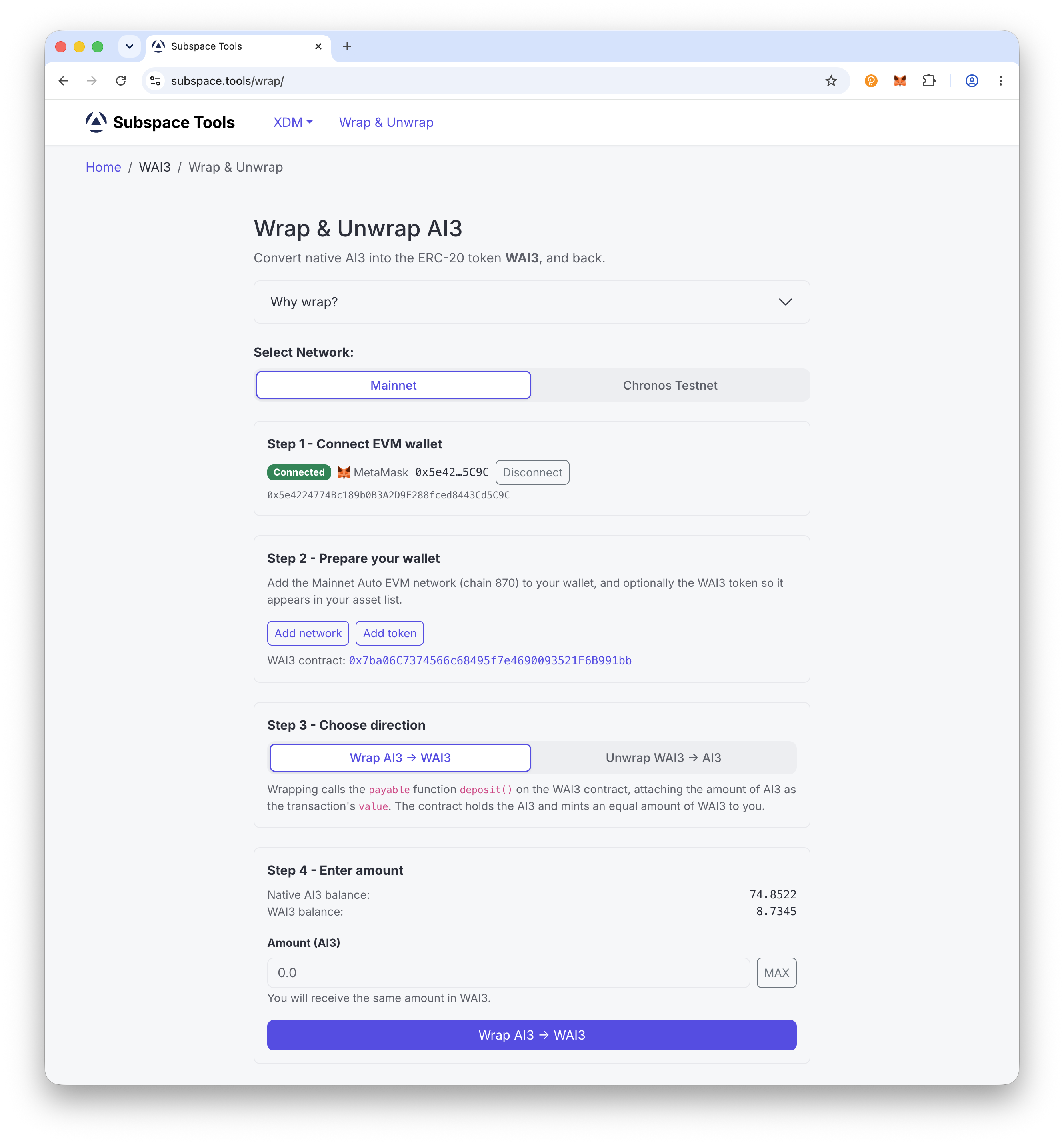
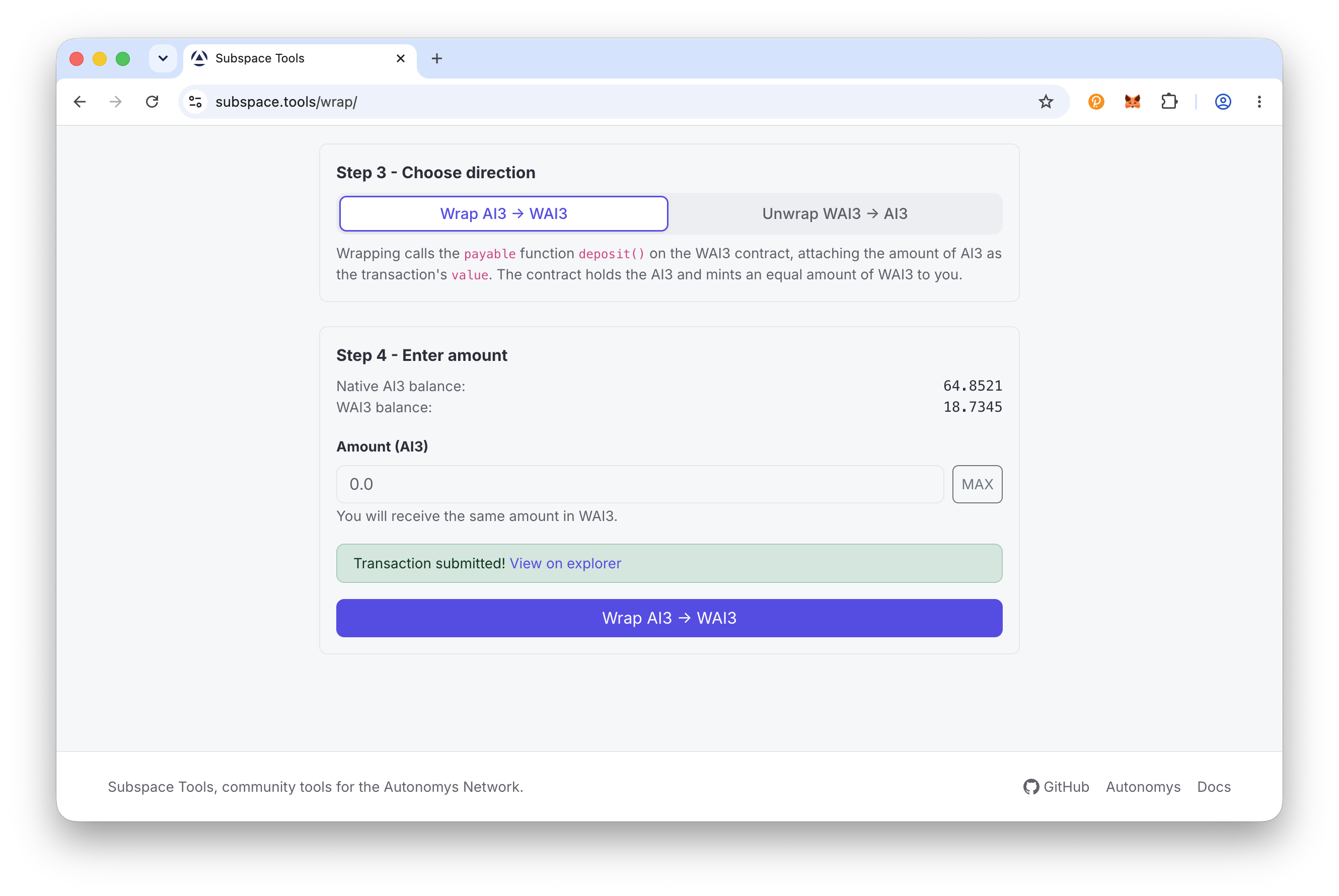
Step 2: Choose Wrap and enter the amount
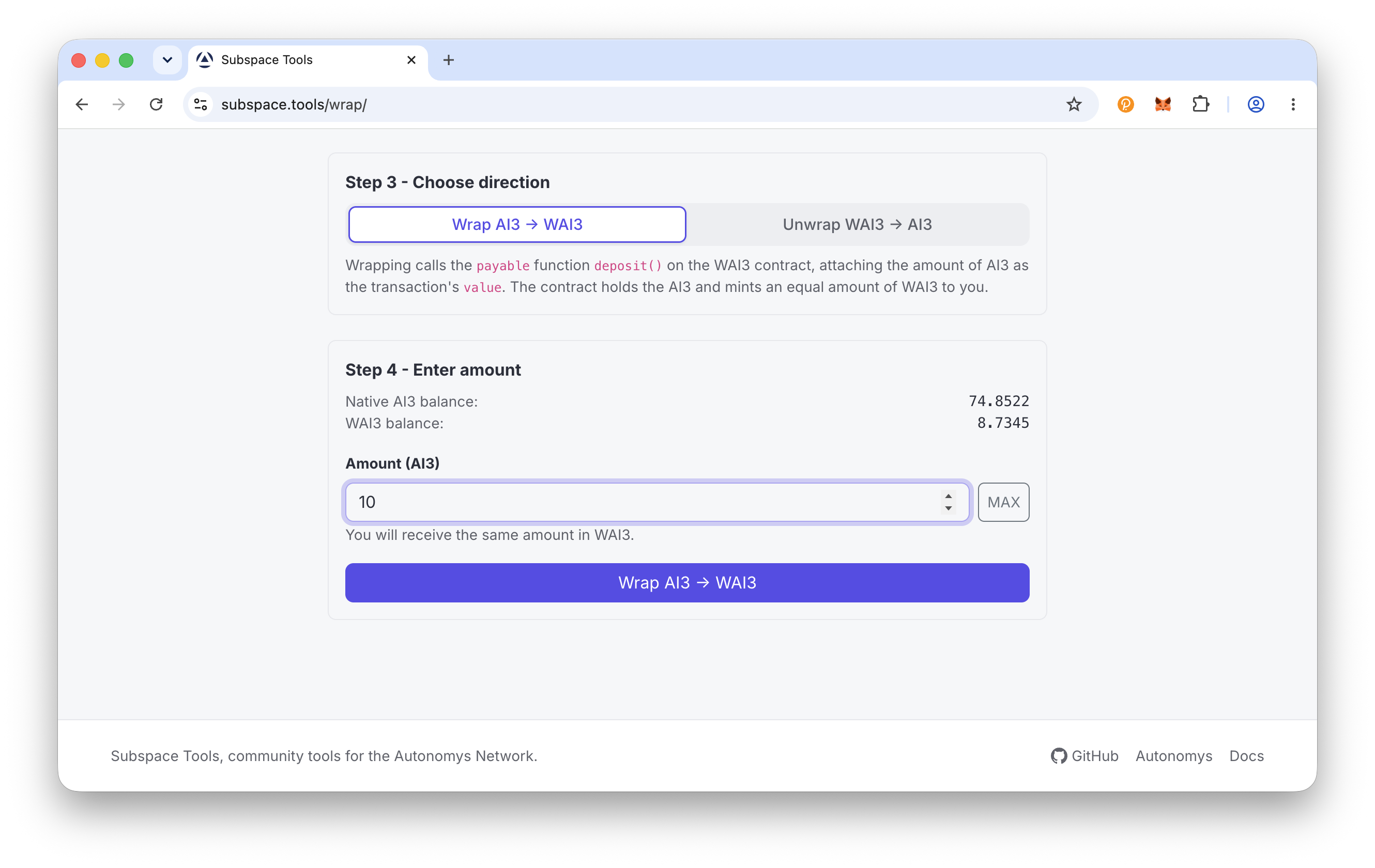
Select Wrap AI3 -> WAI3, then in Amount (AI3) enter how much to wrap or click MAX (a small buffer is kept back for gas). Wrapping is 1:1, so the page confirms "You will receive the same amount in WAI3".
Enter Amount
Step 3: Confirm and complete
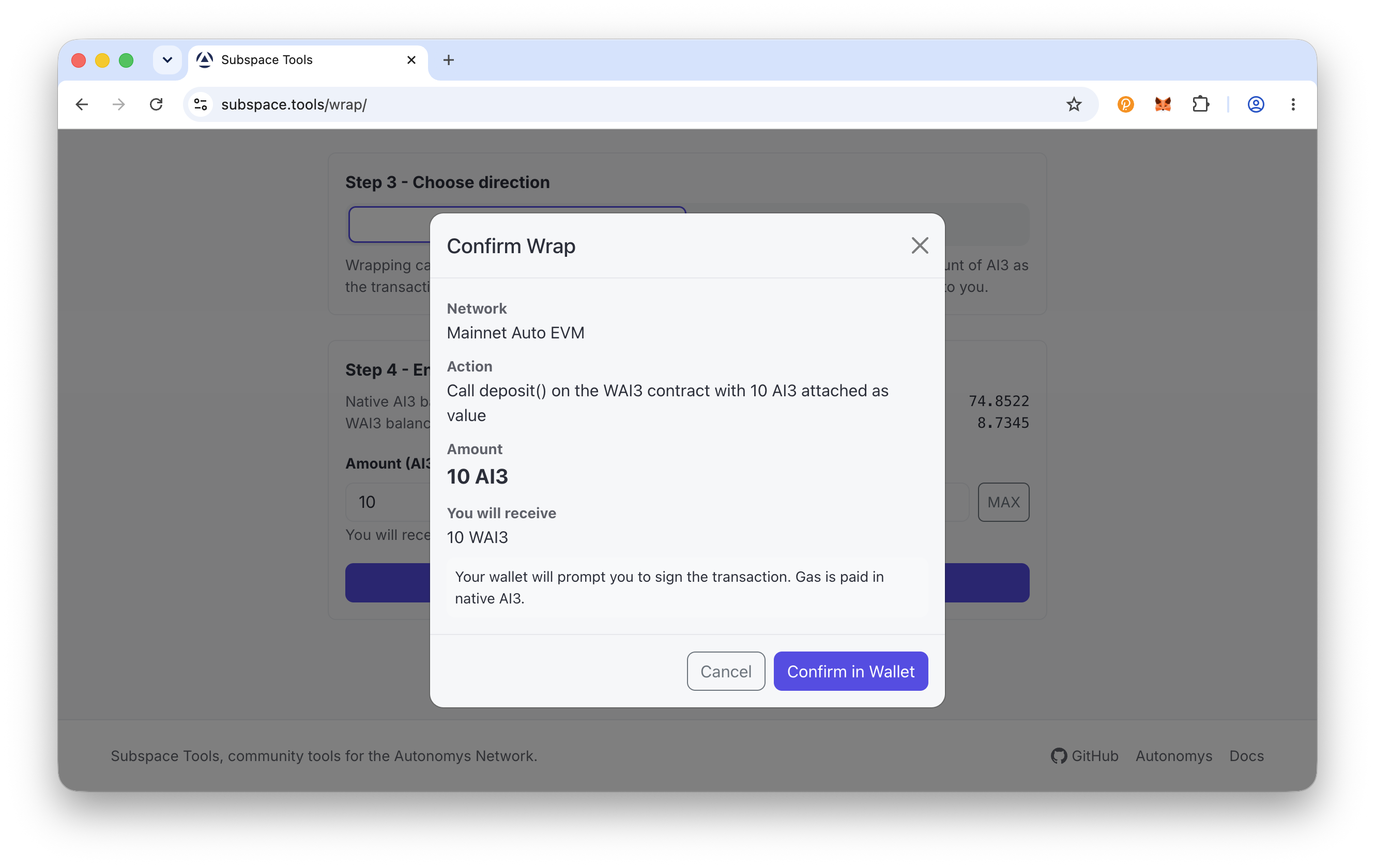
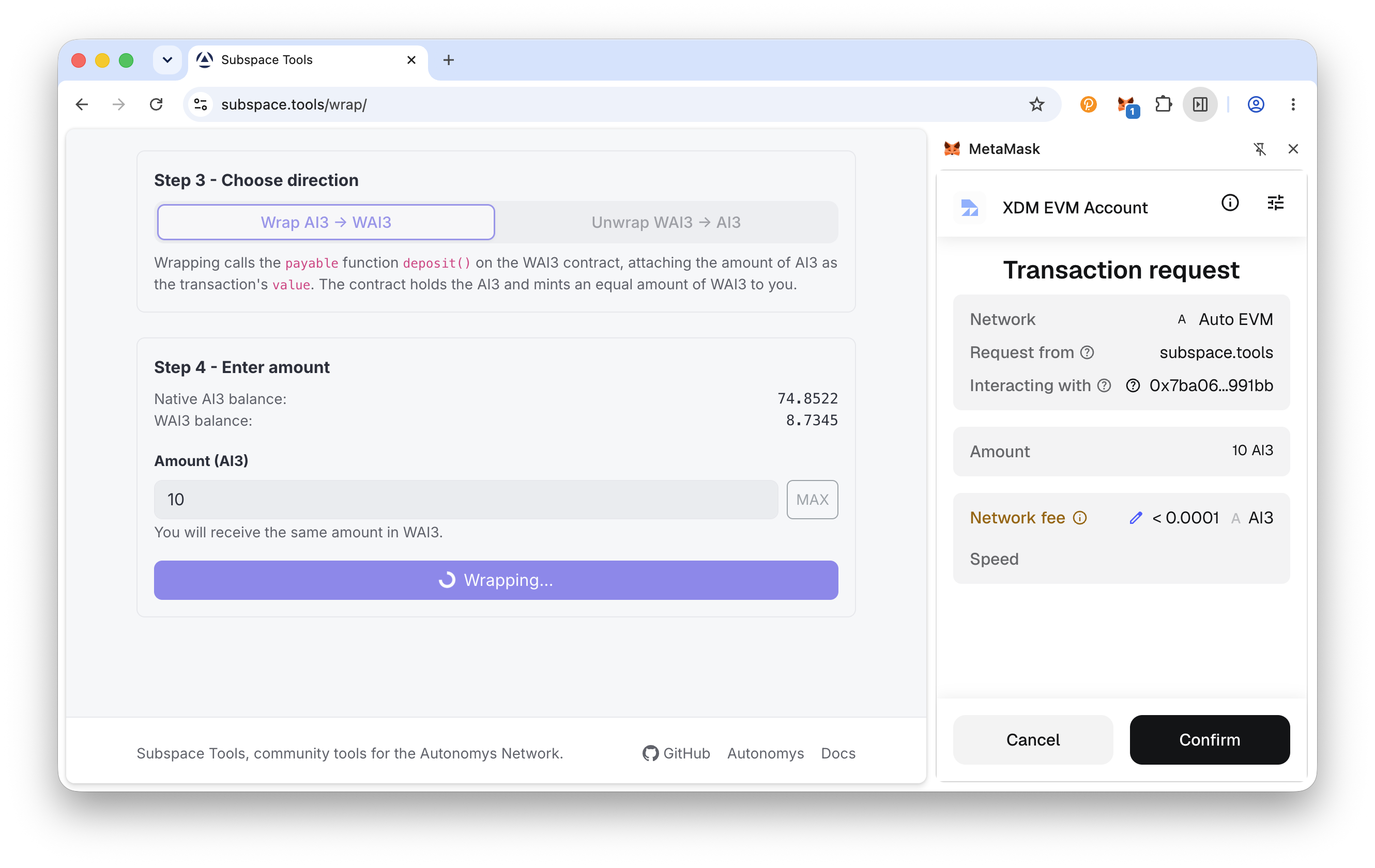
Click Wrap AI3 -> WAI3, review the Confirm Wrap dialog, click Confirm in Wallet and sign. On success you will see "Transaction submitted!" with a View on explorer link, and your WAI3 balance updates once the transaction is mined.
Confirm & Complete
Unwrap (WAI3 to AI3)
Convert wrapped AI3 (WAI3) back into native AI3 on Auto EVM.
Step 1: Connect your wallet
Head to subspace.tools/wrap and connect your EVM wallet, such as MetaMask. First time here? Tap Add network to set up Autonomys Mainnet Auto EVM (chain ID 870), then Add token so your WAI3 shows up in your wallet.
Connect Wallet
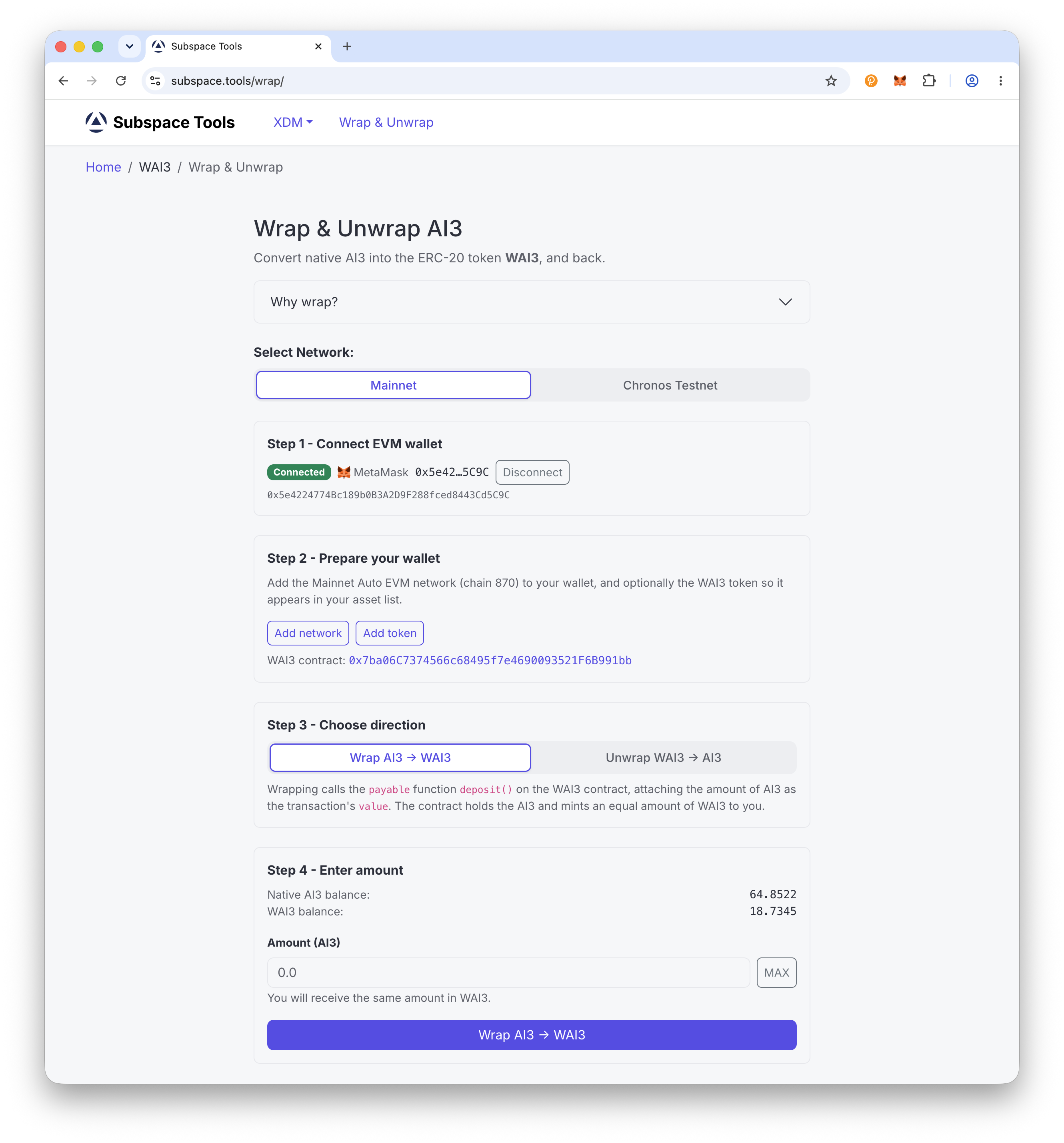
Step 2: Choose Unwrap and enter the amount
Select Unwrap WAI3 -> AI3, then in Amount (WAI3) enter how much to unwrap or click MAX. Unwrapping is 1:1, so the page confirms "You will receive the same amount in AI3".
Enter Amount
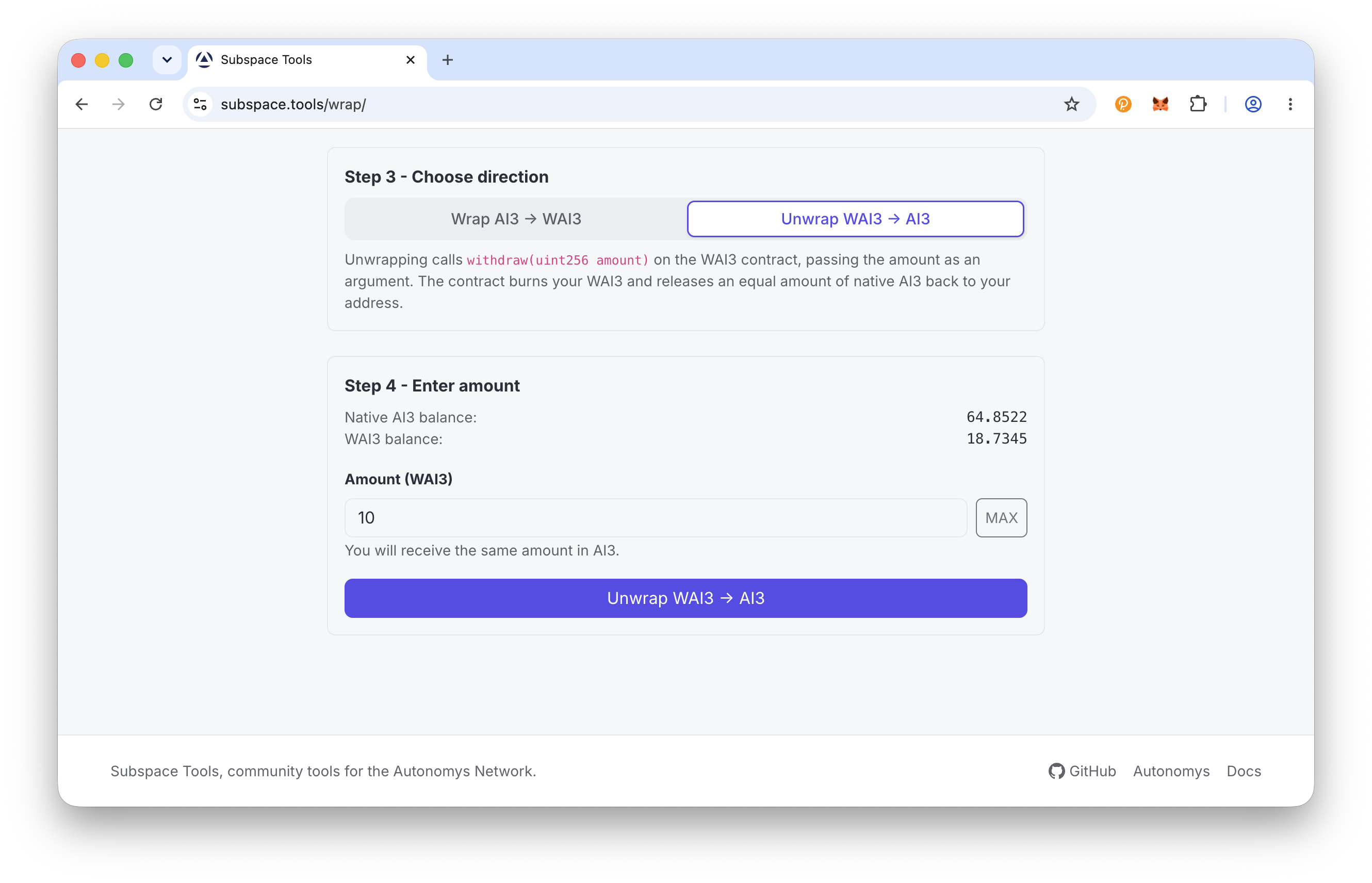
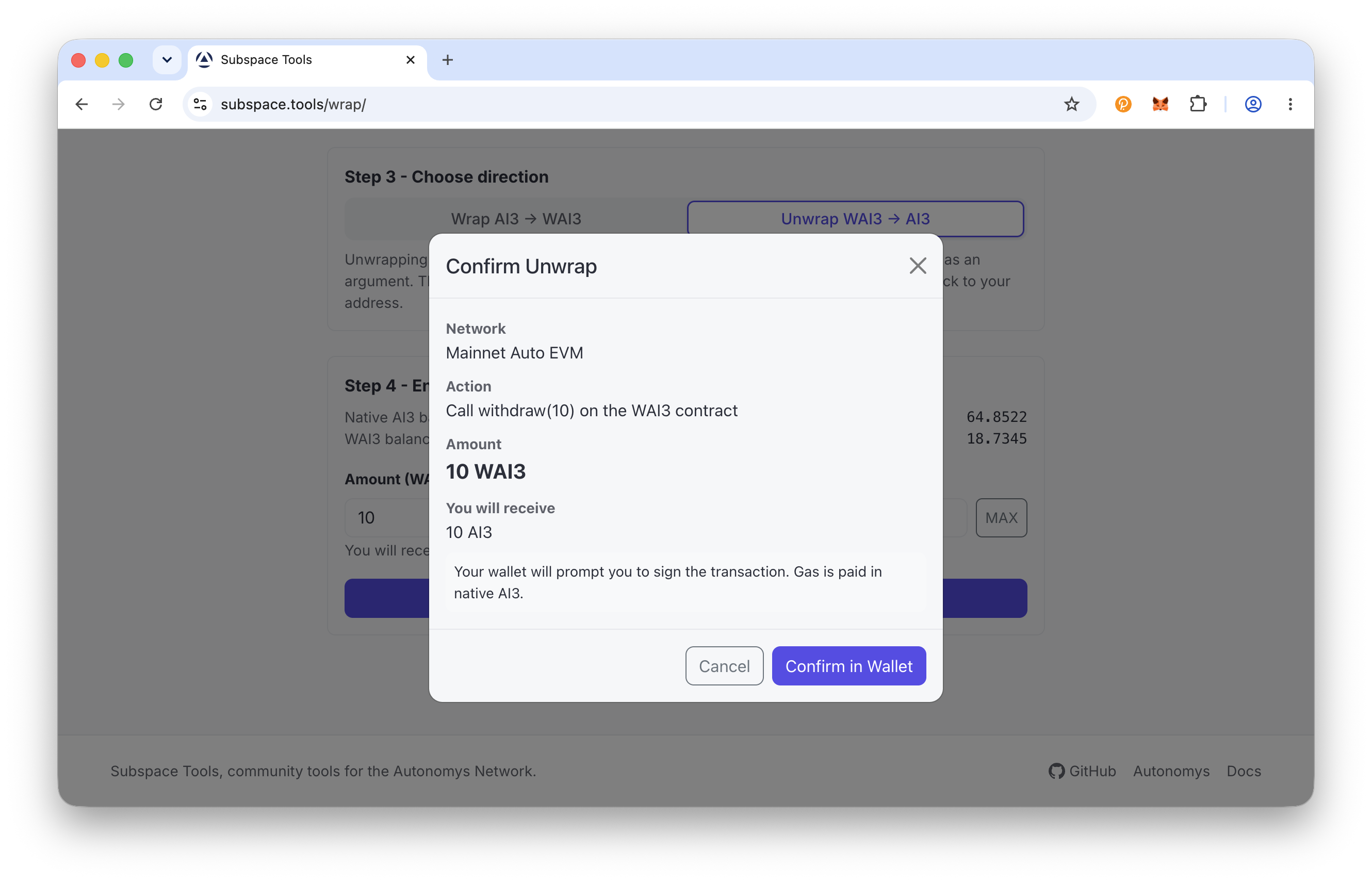
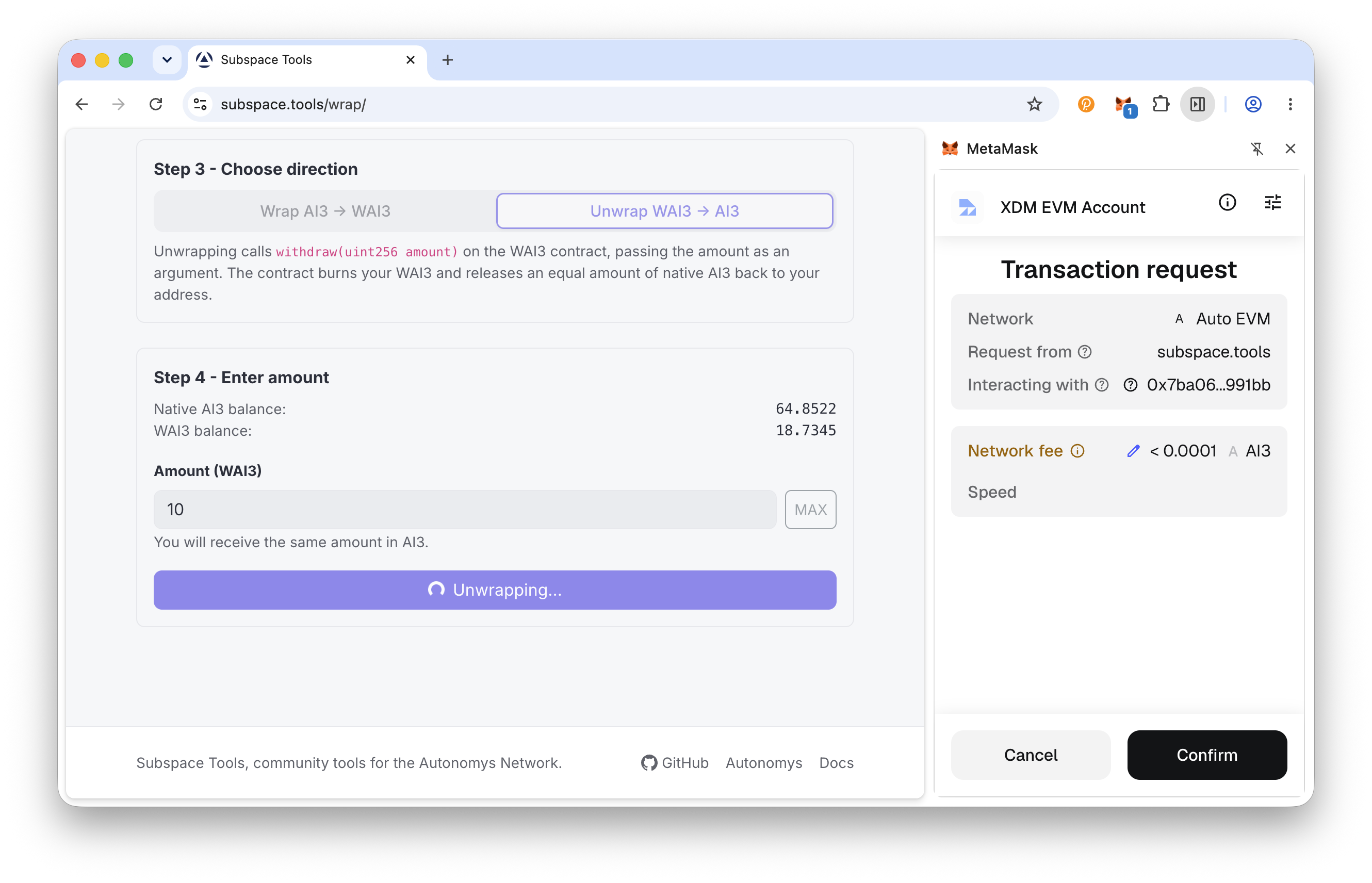
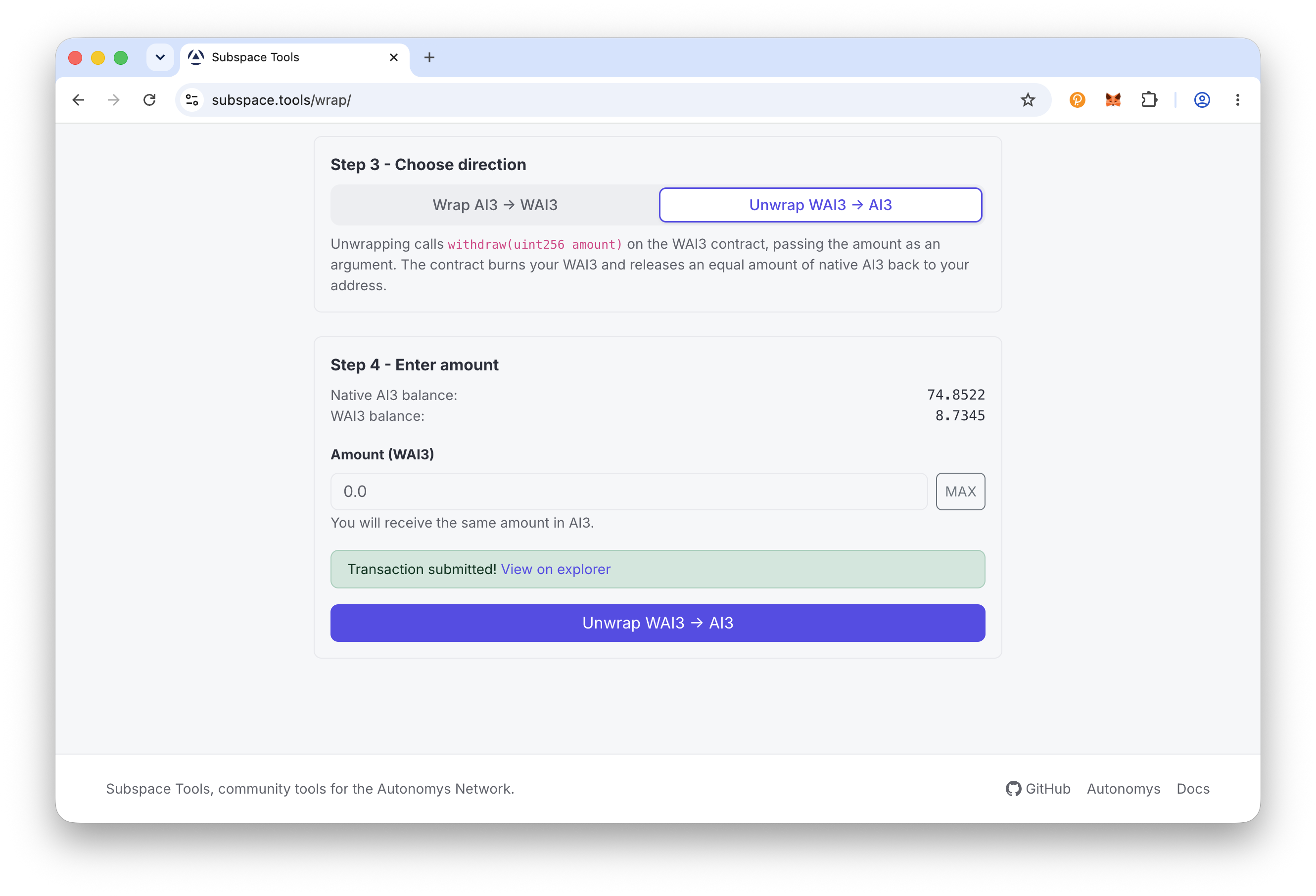
Step 3: Confirm and complete
Click Unwrap WAI3 -> AI3, review the Confirm Unwrap dialog, click Confirm in Wallet and sign (gas is paid in native AI3). On success you will see "Transaction submitted!" with a View on explorer link, and your native AI3 balance updates once the transaction is mined.
Confirm & Complete
Frequently asked questions
What is the difference between AI3 and WAI3?
Native AI3 on Auto EVM is the chain's native token, like ETH on Ethereum. It is used to pay gas, but it is not an ERC-20 token.
WAI3 is a wrapped, ERC-20 version of AI3 (a WETH-style wrapper). Smart contracts and DeFi protocols use WAI3 because they expect a standard ERC-20 interface.
Why would I unwrap WAI3?
Unwrap when you need native AI3 rather than the ERC-20 wrapper. Native AI3 is the token that pays gas on Auto EVM, and it's also what you bridge to the consensus chain with XDM if you want to stake.
Is wrapping 1:1? Are there fees?
Wrapping and unwrapping are always 1:1 - 1 AI3 becomes 1 WAI3 and vice versa. There are no protocol fees; you only pay the network gas for the transaction, which is charged in native AI3.
Which wallet do I need?
An EVM wallet such as MetaMask or Rabby, connected to the Autonomys Mainnet Auto EVM network (chain ID 870). Substrate wallets are not used for wrapping - that happens entirely on Auto EVM.
How do I see my WAI3 balance in my wallet?
On the wrap page, under "Prepare your wallet", use the Add token button to add WAI3 to your wallet's asset list. You can also add it manually using the WAI3 contract address 0x7ba06C7374566c68495f7e4690093521F6B991bb. WAI3 has 18 decimals, the same as AI3.
I have WAI3 but no AI3 for gas - what do I do?
You need a small amount of native AI3 on Auto EVM to pay gas for the unwrap transaction. If your balance is zero and you cannot cover gas, reach out to the team on Discord for assistance. Keep a small buffer rather than wrapping or transferring your entire balance.